Welcome to Chart to Deck Manager — export Excel charts to perfectly formatted PowerPoint decks, consistently and with ease, without VBA.
Chart to Deck Manager (CDM) is a Windows desktop productivity tool built for professionals whose time is wasted rebuilding chart decks by hand and want Excel charts to flow into PowerPoint in a clean, repeatable structure. It is built for recurring reporting work where clarity, consistency, and speed are critical. Instantly convert Excel charts into PowerPoint presentations without VBA — build clean, professional decks in clean 1-up / 2-up / 3-up/ 4-up layouts.
Built for real reporting workflows
Import one or more Excel workbooks, copy/paste charts into CDM slots, choose your slide size, and export a real PowerPoint deck. The key idea: your deck is regenerable. Rebuild the same deck again tomorrow and get the same structure.
1-up / 2-up / 3-up/ 4-up layouts that match how people present
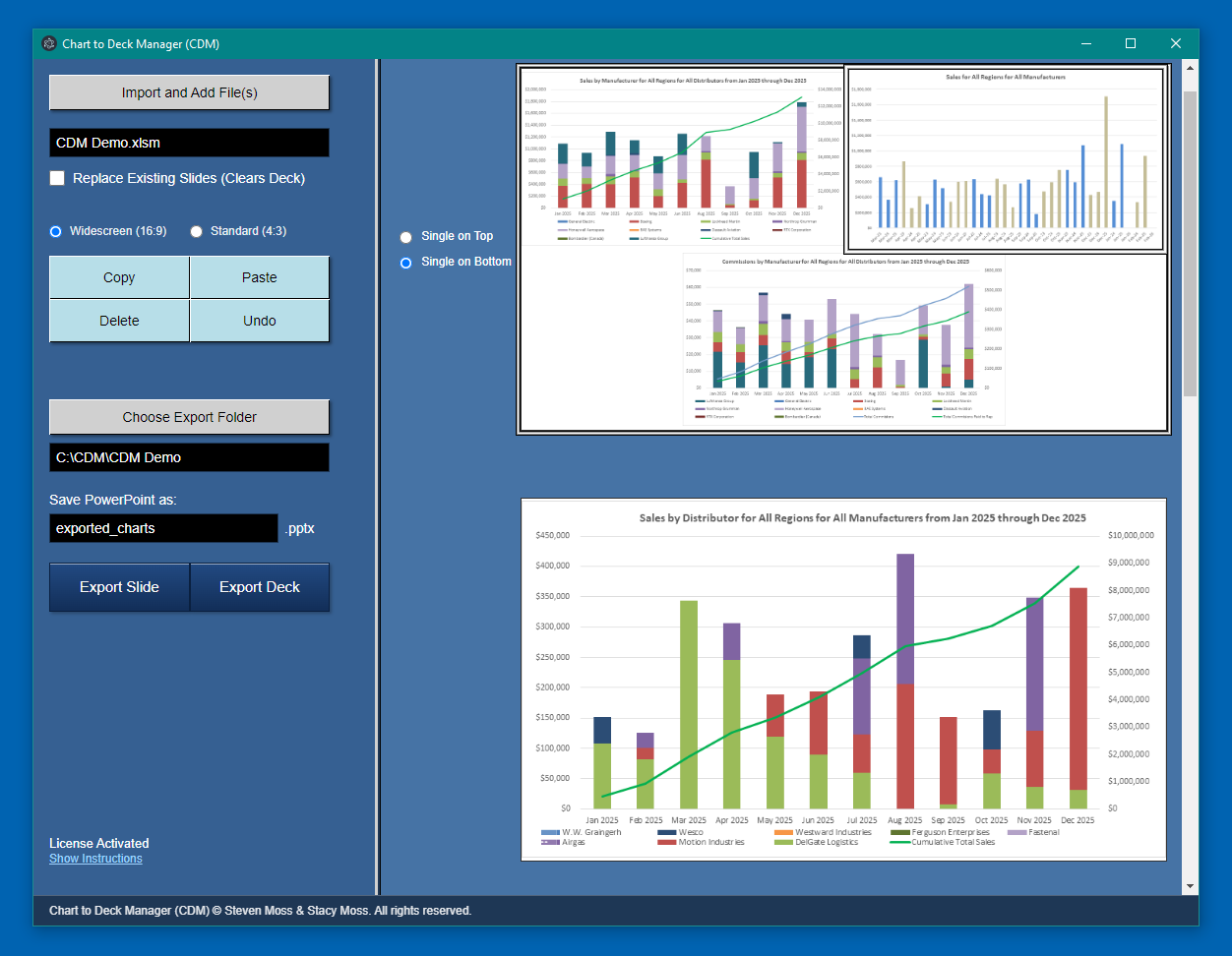
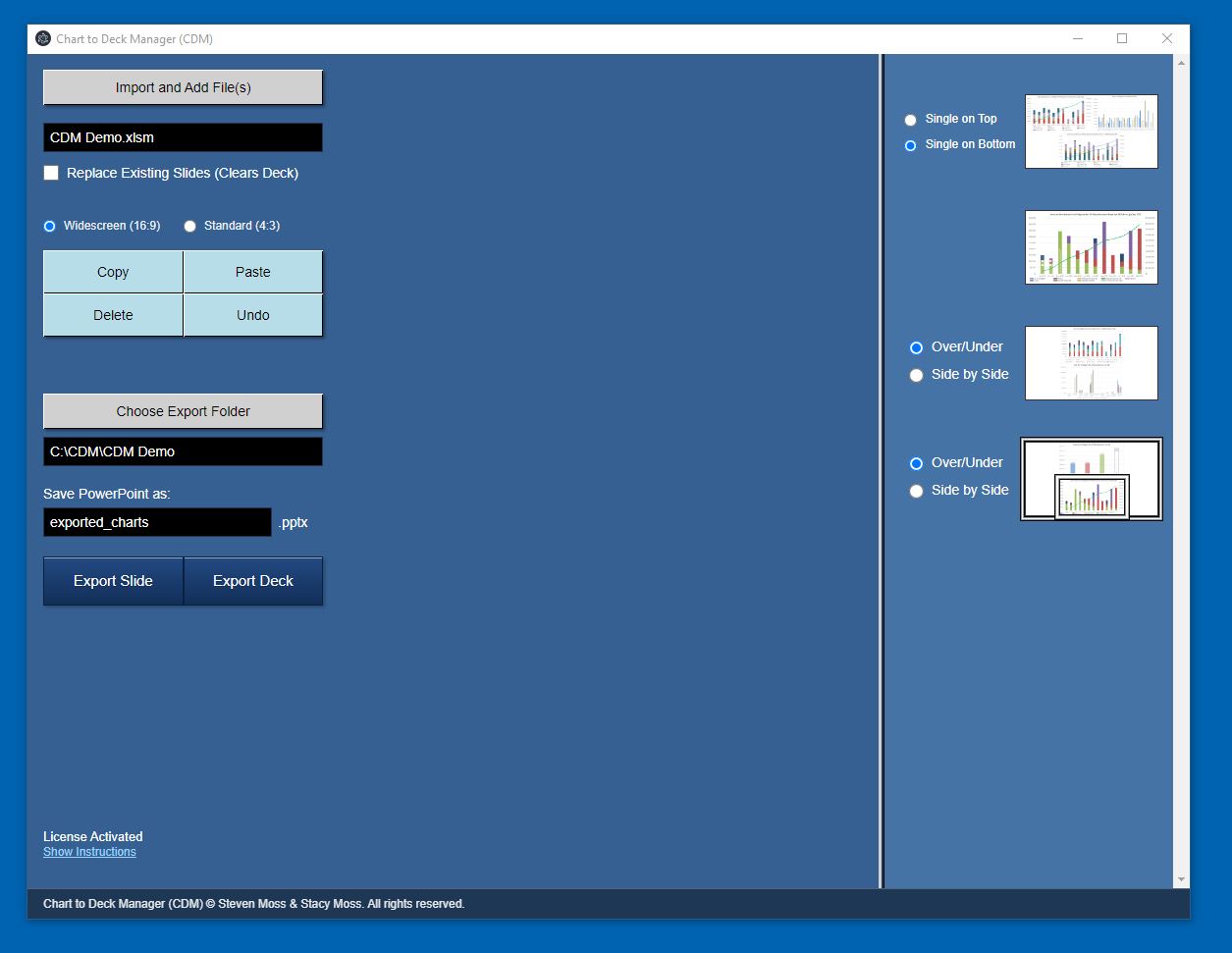
Pick 1‑up, 2‑up, 3‑up, or 4‑up. Two-up supports side-by-side or over/under. Three-up supports single-on-top or single-on-bottom. CDM keeps the layout rules consistent across slides and across rebuilds.
Export Excel charts to PowerPoint you can open and share
CDM generates a standard .pptx file that opens directly in PowerPoint. The output deck is yours — editable, shareable, and suitable for client delivery or internal reporting.
Simple licensing
CDM includes a 30‑day free trial. After the trial, purchase a one‑time license and activate locally with a single license key. No accounts. No servers.
Quick demo
A short walkthrough of the CDM workflow: import → arrange (1‑up / 2‑up / 3‑up / 4‑up) → export to a real PowerPoint deck.
Screenshots
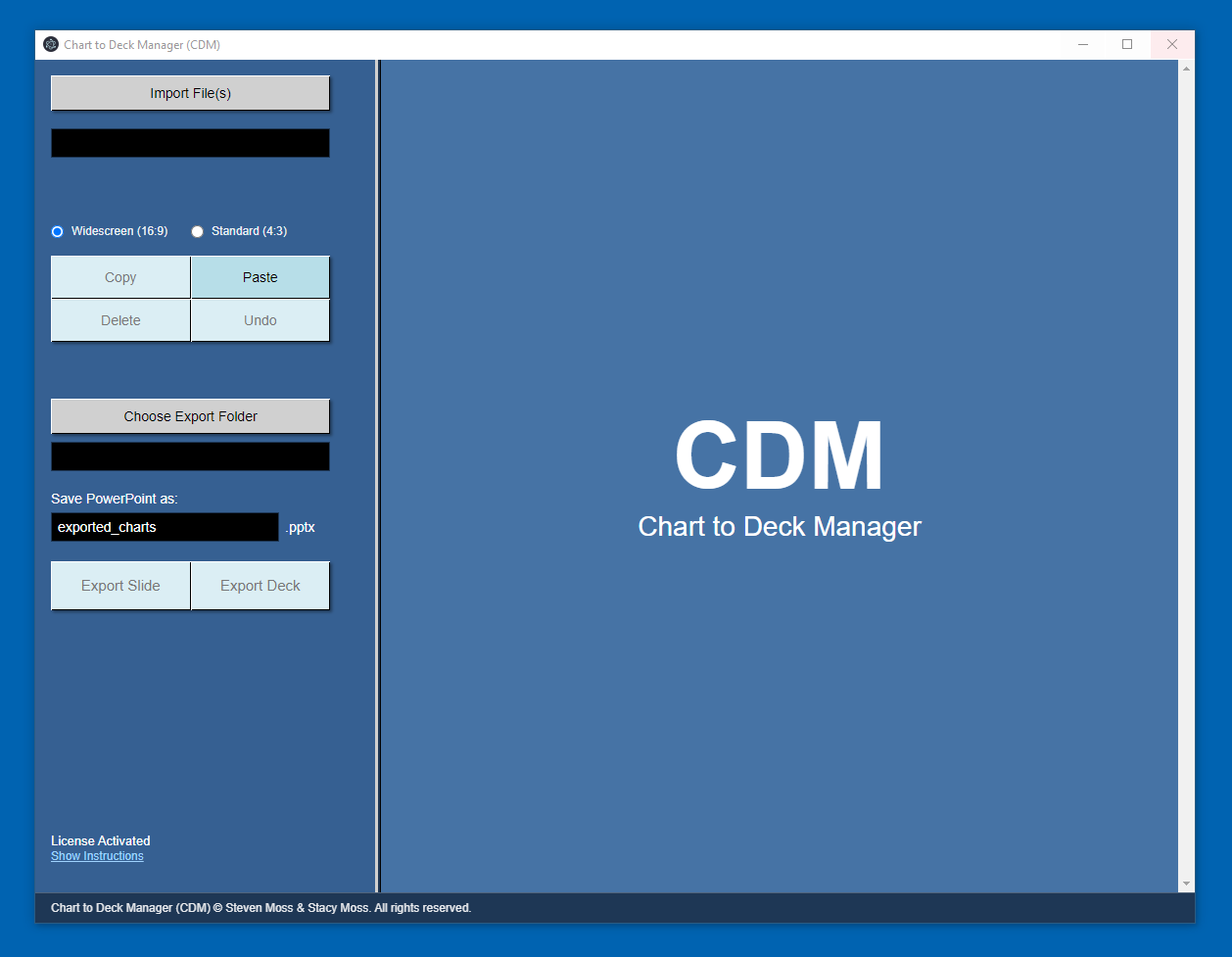
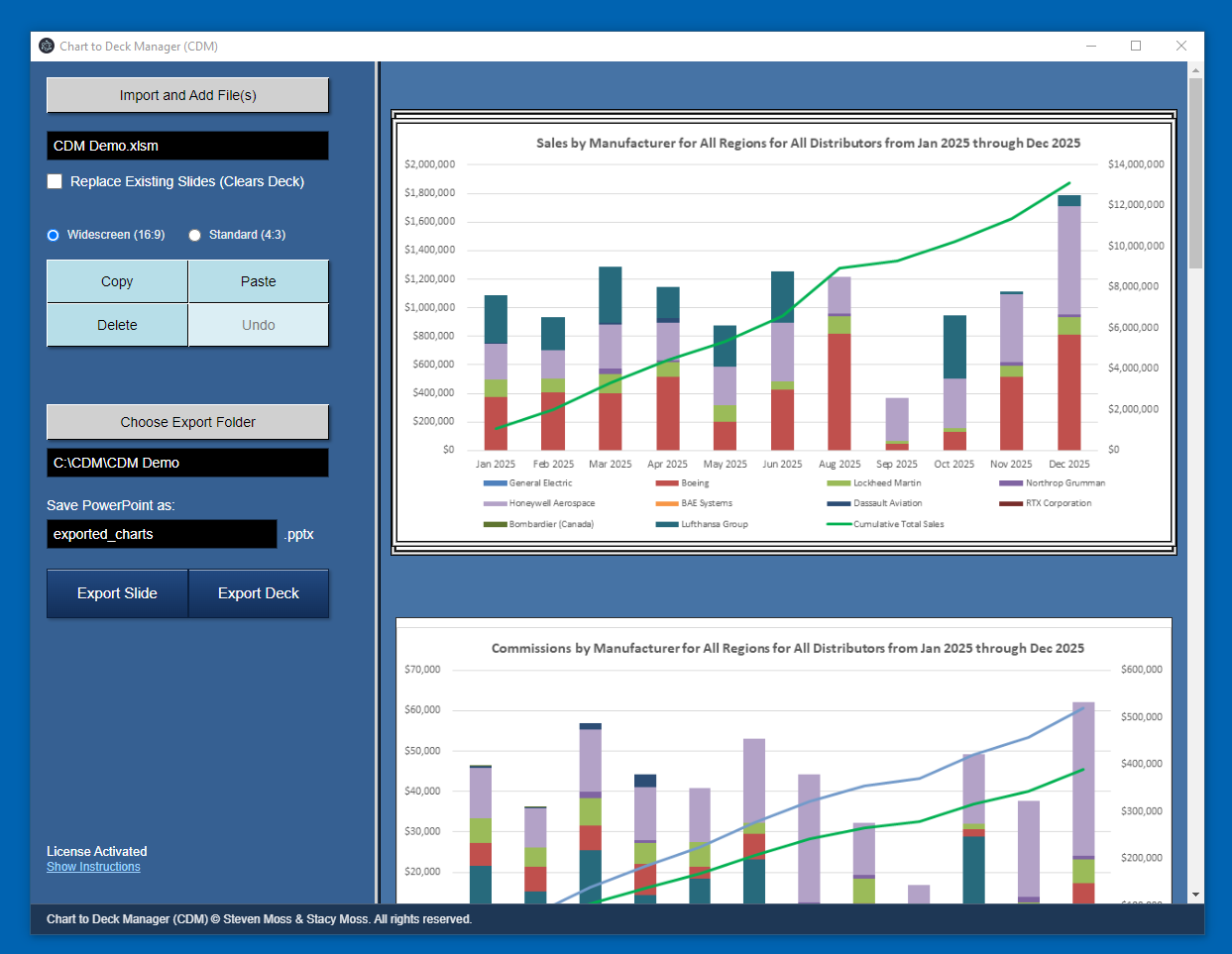
Below are key screens and workflows, shown in the same order used in your Store listing.
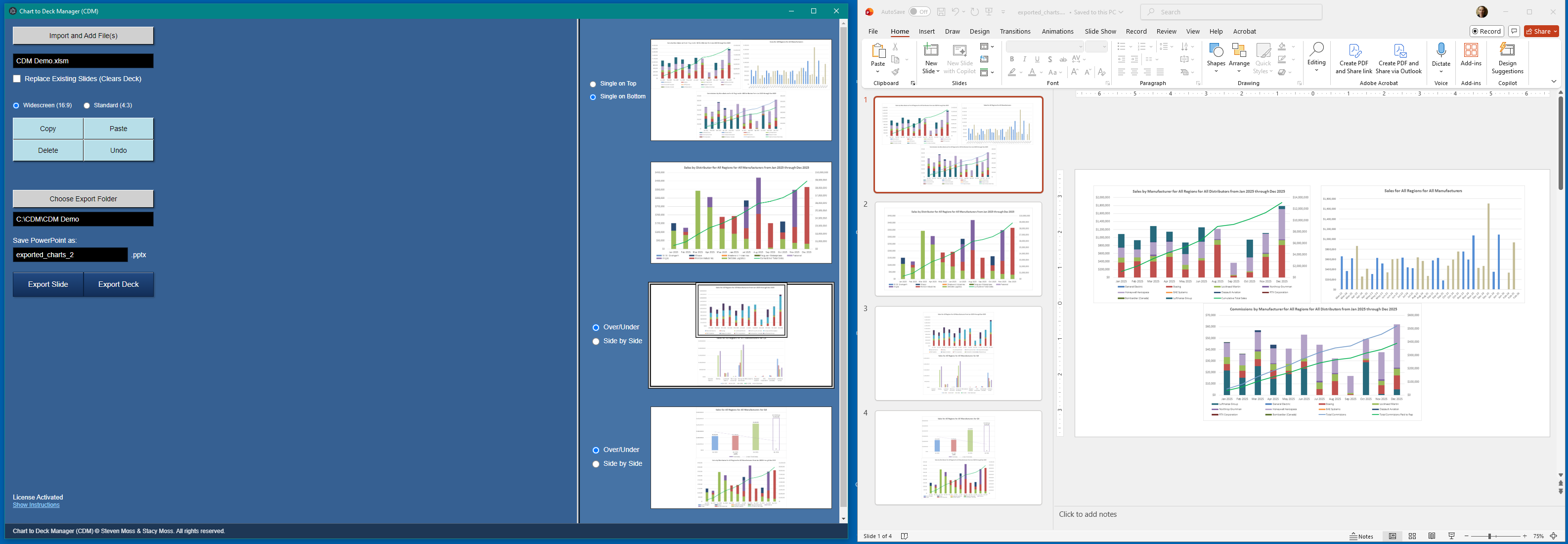
Instructions
Step 1 — Import and Add File(s)
- Import charts and ranges from one or more Excel workbooks
- Import slides from PowerPoint presentations
- Imported content is added to the existing deck unless explicitly cleared
- Hidden Excel worksheets and hidden PowerPoint slides are not imported
- Source files are never modified or closed
Step 2 — Replace Existing Slides (Clears Deck)
- Clears all existing slides before importing new content
- Appears only when at least one slide exists
- Clearing the deck is intentional and irreversible
- CDM never clears content automatically
Step 3 — Select Slide Size
- Choose the slide size for the entire deck
- Supported sizes: Widescreen (16:9), Standard (4:3)
- All slides conform to the selected aspect ratio
Step 4 — Arranging Charts
Slides start as 1-Up. Adding a second chart creates a 2-Up slide; a third chart creates a 3-Up slide, and a fourth chart creates a 4-Up slide. Charts always maintain their original aspect ratios and are never distorted.
- 2-Up slides may be arranged side by side or over/under
- 3-Up slides may be arranged with a single chart on top or on the bottom
- Trying to move a 5th chart to a 4-Up slide swaps the charts between the 4-Up slide and the source slide
- Trying to paste a 5th chart to a 4-Up slide places the pasted chart on a new slide below the 4-Up slide
- Moving charts within or between slides will result in charts swapping positions
Step 5 — Reordering Slides
- Grab handles in the bottom-left corner of each slide allow slides to be dragged up or down to insert between others
Step 6 — Clipboard & Edit Controls
- Copy (Ctrl-C), Paste (Ctrl-V), Delete (Delete), Undo (Ctrl-Z)
- Import actions and deck clears are intentionally not undoable
Step 7 — Choose Export Folder
- Select the folder where exported PowerPoint decks will be saved
Step 8 — Save PowerPoint As
- Specify the output filename; existing names auto-increment
Step 9 — Export Slide to PowerPoint
- Exports only the currently selected slide
Step 10 — Export Deck to PowerPoint
- Exports the entire deck as shown in the preview pane
Chart to Deck Manager (CDM) Overview
Designed to Reduce the Cost and Time of Rebuilding Decks by Hand
Chart to Deck Manager (CDM) is a Windows desktop productivity tool that deterministically builds PowerPoint decks from Excel charts, Excel ranges, and PowerPoint sources—without VBA, macros, or brittle templates. CDM treats a presentation as a structured deck composed of explicit slides and slots, ensuring every import and export is predictable, repeatable, and failure-safe.
By enforcing fixed layouts, charts and content are placed consistently and without distortion. The preview you see matches the exported result through an intuitive and intentional workflow, allowing deck creation to function as a consistent process rather than a manual task.
This approach eliminates common failure points found in traditional copy-and-paste workflows:
- No skipped slides
- No silent errors
- No layout drift over time
Built for Repeatable, Predictable Results
Professionals who regularly convert Excel content into PowerPoint are familiar with the problem:
- Manual copy-and-paste introduces inconsistencies
- Layouts drift as decks evolve
- Charts resize unpredictably
- Each update takes longer than the last
What starts as a clean presentation gradually degrades. CDM exists to stop that cycle. By treating deck creation as a consistent process rather than a manual task, CDM produces stable structure and reliable output across revisions. The same inputs generate the same slides, allowing decks to be updated, reused, and shared without rework.
How CDM Fits Into Your Workflow
- Charts are assembled into fixed 1-Up, 2-Up, 3-Up, and 4-Up layouts
- Aspect ratios are always preserved
- The on-screen preview matches the exported PowerPoint output
If copying Excel charts to PowerPoint presentations is part of your workflow, CDM provides a fast, structured way to build recurring decks without the manual effort involved in copying and pasting between applications.
What CDM Does Not Attempt
- Does not replace Excel or PowerPoint (is not an editor for charts, data, or slides)
- Does not modify source Excel or PowerPoint files
- Faithfully represents the saved content of imported files (does not infer layout or redesign slides)
- Does not rely on VBA, macros, or PowerPoint templates
- Does not require cloud services or internet access
By avoiding these behaviors, CDM remains stable, predictable, and safe to use in recurring workflows.
About the Developer
Steven Moss is an engineer who builds software systems meant to last. He is an advanced Excel power user and a VBA subject matter expert, with deep, practical experience automating real-world Excel and PowerPoint workflows at scale.
His work blends systems-level rigor with a strong focus on clarity and explicit user intent, spanning architecture, automation, and pixel-level UI behavior. Steven favors deterministic workflows, explicit contracts, and ownership-safe automation over shortcuts or fragile abstractions.
CDM reflects this philosophy: an intentionally constrained system that prioritizes correctness, durability, and long-term reliability.